



I’m Dave McCormack, Managing Director at Bubblehub Media. Plenty of businesses start on a Wix site, and for a first website it does the job. The limits show up later, usually on SEO and on anything you want built your own way. Deciding to migrate from Wix to WordPress is a normal step for a business that has outgrown the platform it started on.
Three questions come up every time. Is WordPress too technical? Can the site keep its look? How do you transfer a Wix site without losing SEO? The answers are no, yes with some rebuilding work, and by mapping 301 redirects before you switch. Bubblehub has run this Wix to WordPress migration for businesses of most sizes. You can read more about us and how we work.
Bubblehub has been doing digital marketing for over 10 years, as a certified Google Ads Partner and HubSpot Inbound Marketing professional, with more than 150 website launches behind us.
1. What migrating from Wix to WordPress gives you, especially for SEO
Most businesses migrate from Wix to WordPress because they have outgrown what Wix lets them change, and most of what they want to change is search engine optimisation. There is more on that work in What is an SEO Agency?.
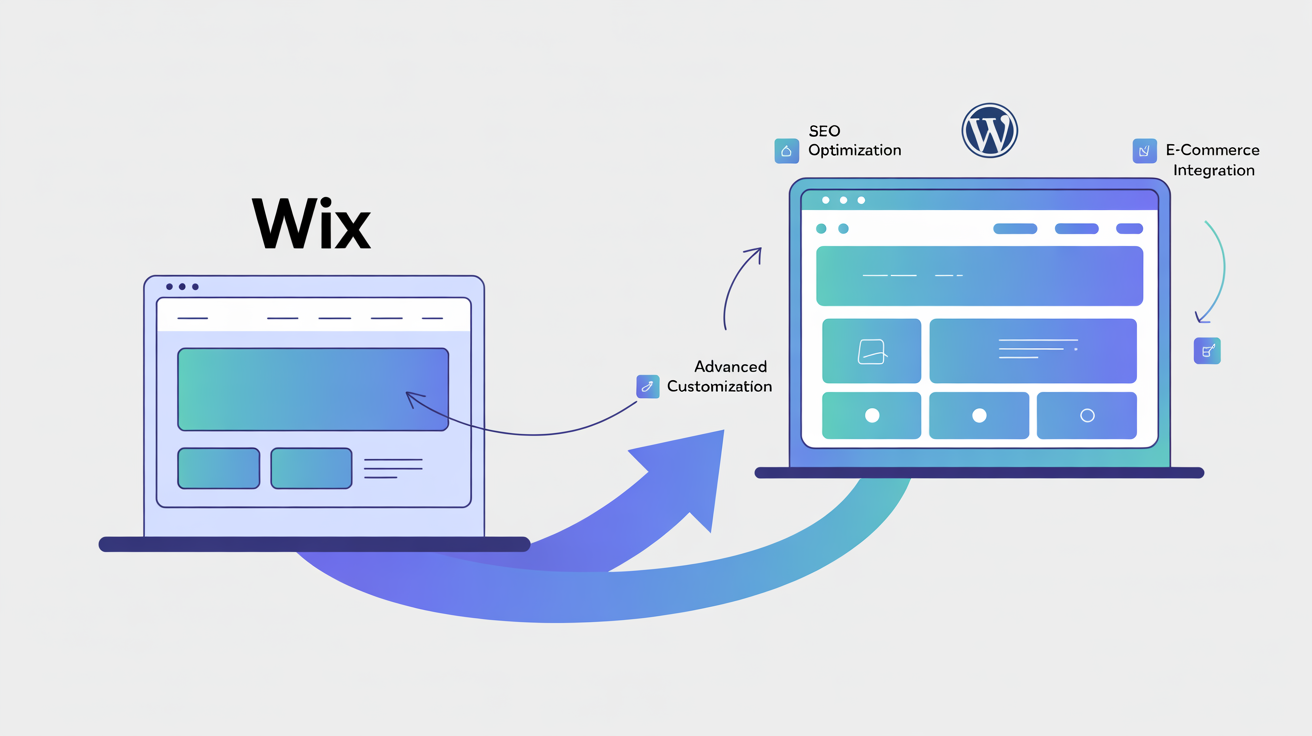
- Unmatched Control and Customisation: Wix is a “closed platform.” This means your options are limited by Wix’s own tools. WordPress is open-source. This gives you near-limitless freedom. Need a specific e-commerce feature for your Wix store alternative? Want unique functionality? WordPress has thousands of WordPress plugins and allows for custom development. (It is why we build most client sites on WordPress. See our web design and development services.)
- SEO control: Wix gives you the basic settings. WordPress gives you the ones that move rankings:
- Advanced SEO Plugins: Tools like Yoast SEO or Rank Math (learn more about SEO tools on a resource like Moz Blog) provide deep control over on-page SEO (titles, meta descriptions), technical SEO (sitemaps, robots.txt), and structured data (schema markup). That control is where most of the gain in Wix to WordPress SEO comes from.
- Content-First Platform: WordPress excels at content management, making it ideal for content marketing strategies that drive organic traffic.
- Optimised for Speed: With the right hosting, theme, and configuration, WordPress sites can be very fast. Site speed is a key Google ranking factor. Our SEO agency services in Ireland focus heavily on this.
- Scalability for Growth: Your website needs to grow with your business. WordPress is built to scale. Whether you’re expanding a WooCommerce store or building a high-traffic content hub, WordPress can handle it. Many businesses find their Wix website eventually limits their expansion, especially for eCommerce SEO.
- Full Data Ownership: With WordPress, you own your website files and database. You can move your site to any host. With Wix, your site and data are more tied to their platform.
- A large community: tutorials for most problems, like those on WordPress.org Support, and no shortage of developers who know the platform.
Wix and WordPress compared
The differences that matter, side by side.
| Feature | Wix | WordPress |
|---|---|---|
| SEO Control i Control over meta tags, URL structure, schema markup, and technical SEO elements. | Basic | AdvancedWinner |
| Customisation i Ability to modify design, functionality, and create custom features. | Limited | ExtensiveWinner |
| E-commerce i Online store capabilities, product management, payment options, and scalability. | Basic | Powerful/ScalableWinner |
| Data Ownership i Control and portability of your website data, content, and files. | Platform-Hosted | Full OwnershipWinner |
| Ease of Use i How quickly a beginner can learn the platform and create a professional-looking website. | Very EasyWinner | Moderate Learning Curve |
| Maintenance Required i The level of ongoing maintenance, updates, and technical management needed. | MinimalWinner | Regular Management |
Wix is not bad software. It has a ceiling, and a growing business reaches it.
Why choose WordPress over Wix
- Gain full control and customisation with open-source WordPress.
- Access advanced SEO tools and plugins for better Google rankings.
- Scale your website easily as your business grows.
- Own your website data completely.
- Benefit from a vast support community.
2. Phase 1, planning your move off Wix
Most of the pain in a Wix to WordPress migration comes from starting without a list of what is on the old site. The same goes for where to start with SEO.
2.1. Know Your Starting Point: Auditing Your Current Wix Site
Before you move, understand what you have:
- List All Wix URLs: Create a spreadsheet. List every page on your Wix site (Homepage, About, Services, Contact, Blog posts, etc.). You will need that list when you set up the redirects.
- Identify Page Content: For each Wix page, note the text, images, videos, and any special forms or Wix App features.
- Map Key Functions: What does your site do? (e.g. lead forms, online store, bookings).
2.2. Define Your Destination: Setting Goals for Your New WordPress Website
This migration is an opportunity to improve. Ask yourself:
- What works well on my Wix site that I want to keep or enhance?
- What are the limitations of my Wix website I want to overcome?
- What are my main business goals for the new WordPress site? (e.g. more organic traffic, higher conversion rates, better brand presentation). Our Bubble Blog often covers strategies for achieving these goals.
2.3. Safety First: Backing Up All Your Wix Content
Important: Wix does not offer a simple “export all content” button for moving to another platform like WordPress. You must back up manually.
- Save Text: Copy all text from every Wix page. Paste it into documents (e.g. Google Docs).
- Download Media: Download all your images, videos, and PDFs from your Wix media library or live site.
- Note Blog RSS Feed: If your Wix blog has an RSS feed (usually
yourwixsite.com/blog/feed.xml), save this URL. It helps transfer blog text. - Take Screenshots: Capture images of your key Wix pages for design reference.
This backup protects your work before you migrate from Wix.
Planning before you move
- Create a full list of your Wix site’s URLs and content.
- Define clear business goals for your new WordPress website.
- Manually back up all text, images, and media from your Wix site.
- Save your Wix blog’s RSS feed URL if available.
3. Phase 2, hosting and installing WordPress
Your new WordPress site needs a place to live (hosting) and the WordPress software.
3.1. Choosing your WordPress host
Wix includes hosting. With WordPress you pick your own WordPress host, and that choice sets how fast your site loads and how often it is down, both of which show up in your rankings. Bubblehub has web hosting packages built for WordPress.
What to Look for in a WordPress Host:
- Speed and performance: SSD storage, a current PHP version and proper caching.
- Reliability (Uptime): Aim for 99.9% uptime or higher.
- Security: Look for firewalls, malware scanning, and free SSL certificates (HTTPS).
- Quality Customer Support: Responsive and knowledgeable support is key, especially if you’re new to managing your own hosting.
- Managed WordPress Hosting: These plans often handle WordPress updates, backups, and security for you. This can be a good option for a smoother experience after Wix.
- Scalability: Ensure the host can support your site as it grows.
Cheap hosting is cheap for a reason. Managed WordPress hosting costs more and takes the updates, backups and security patching off your desk.
3.2. Installing WordPress Software: A Quick and Easy Step
Most good WordPress hosting providers offer a “one-click” WordPress installation tool. You can find general installation guides on WordPress.org.
- Log into your hosting account’s control panel.
- Find the WordPress installer (e.g. Softaculous, WordPress Toolkit).
- Follow the prompts: select your domain, set a site title, create an admin username and password.
- Click “Install.”
WordPress will be set up. You can then log into your WordPress dashboard at yourdomain.com/wp-admin.
Hosting and installation
- Select a WordPress host focusing on speed, security, support, and scalability.
- Consider Managed WordPress Hosting for easier maintenance.
- Use your host’s one-click installer to quickly set up the WordPress software.
4. Phase 3, managing your domain name during the move
Your domain name (e.g. yourbusiness.com) needs handling deliberately when you leave Wix. Whether a .ie domain ranks better in Ireland is a separate question.
4.1. Domain Strategy: Transferring Your Wix Domain vs. Pointing It
You have choices for your Wix domain when moving to WordPress:
- Transfer Your Domain: Move your domain registration from Wix (or its current registrar) to a new one, like your WordPress host.
- Point Your Domain: Keep your domain registered where it is. Change its DNS settings to point to your new WordPress site.
- Benefit: Can be quicker to get your new site live.
- Note: You’ll manage domain and hosting separately. If Wix is your registrar, you still manage the domain there.
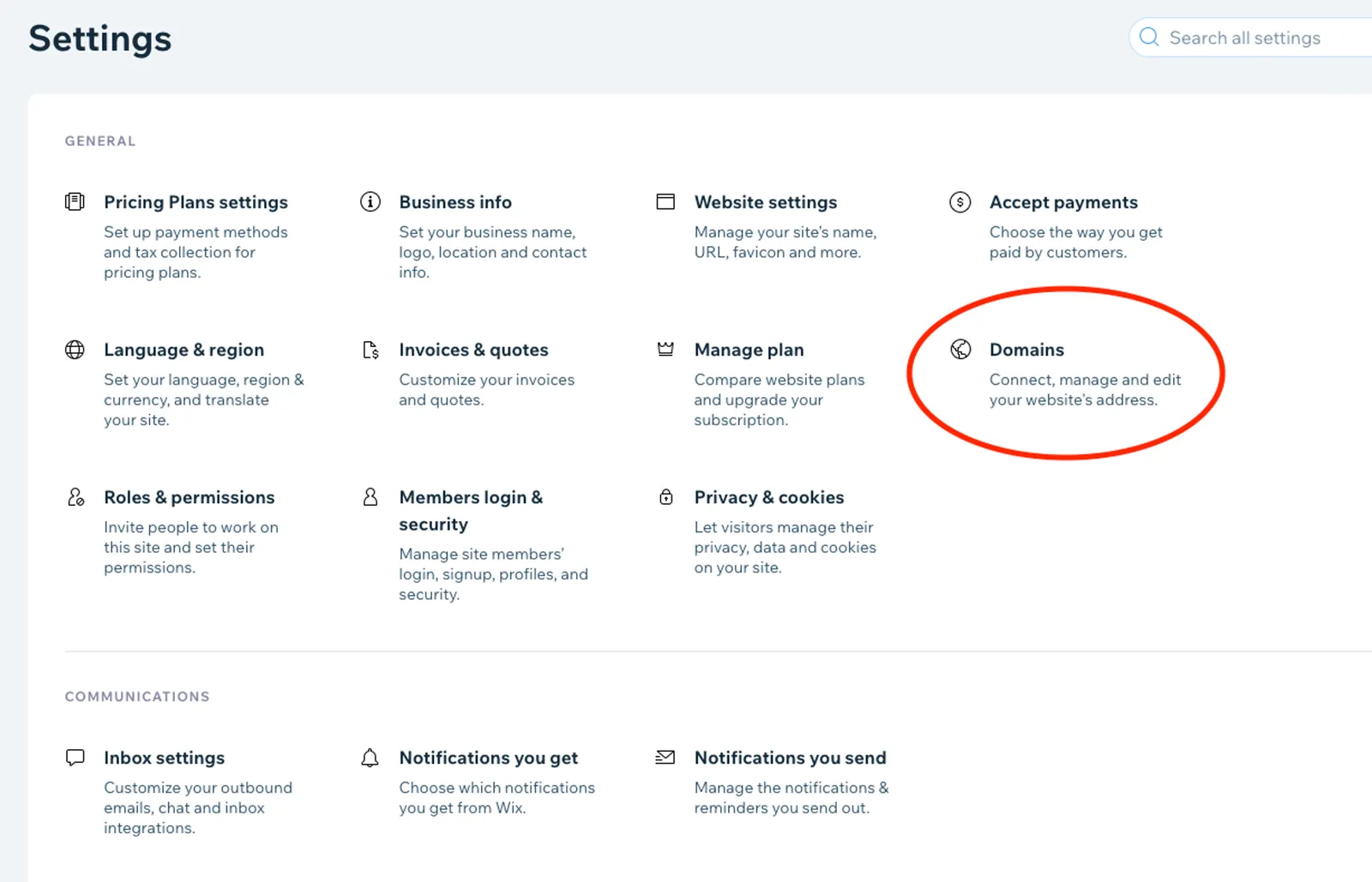
4.2. Step-by-Step: How to Transfer Your Domain Name from Wix
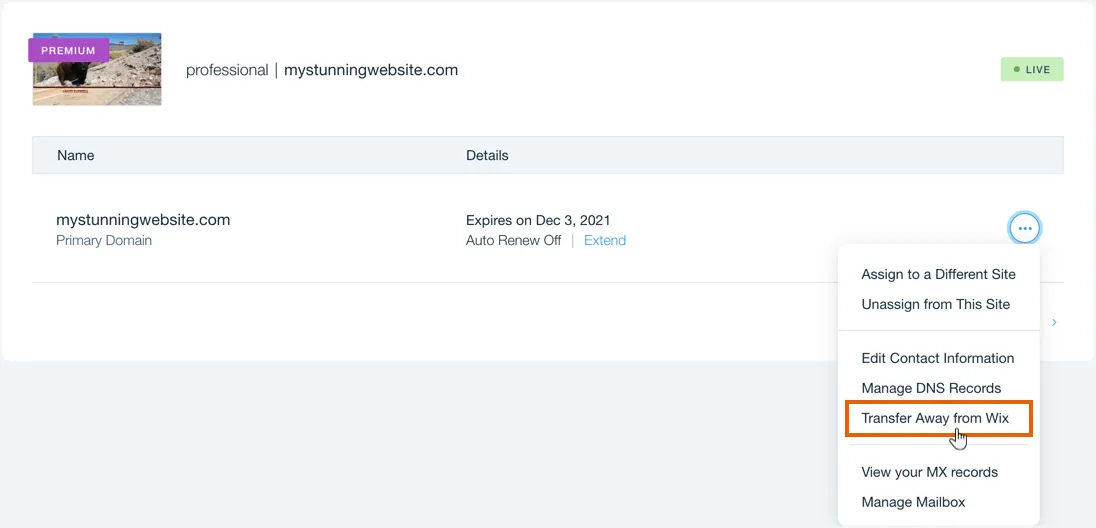
To transfer your domain from Wix:
- In Your Wix Account:
- Log in. Go to “Domains.” Select your domain.
- Follow Wix’s steps to remove the transfer lock on the domain.
- Get the EPP code (Authorisation Code) from Wix.
- With Your New Registrar:
- Go to your new registrar (e.g. your WordPress host).
- Choose “Transfer Domain.” Enter your domain name and the EPP code.
- Approve the transfer via an email (sent to the domain’s admin contact).
- Wait: The transfer usually takes 5-7 days.
4.3. Step-by-Step: How to Point Your Existing Domain to Your WordPress Site
To point your domain to your new WordPress host:
- Get DNS Info: Your WordPress host will give you Nameservers (e.g.
ns1.yourhost.com,ns2.yourhost.com) or an A Record (an IP address). - Update DNS at Your Registrar:
- Log into where your domain is registered (e.g. Wix account, GoDaddy).
- Find DNS management settings.
- Change the existing Nameservers to the new ones. Or, update the A Record to the new IP address.
- Allow Propagation: DNS changes can take a few hours, up to 48 hours, to update globally. You can check propagation status using tools like DNSChecker.org.
Bubblehub Tip: To minimise downtime, consider building your WordPress site on a temporary URL from your host, then point your main domain once the site is ready.
Handling the domain
- Decide to transfer your Wix domain, point it, or use a new one for WordPress.
- For transfer: Unlock in Wix, get EPP code, initiate with new registrar.
- For pointing: Get DNS (Nameservers/A Record) from WordPress host, update at current domain registrar.
- Be aware DNS propagation can take up to 48 hours.
5. Phase 4, moving your Wix content to WordPress
This phase involves moving your text, images, and blog posts from your Wix site to your new WordPress site.
5.1. Wix Content Export: What’s Possible, What’s Not
Key Fact: Wix does not provide a one-click tool to export your entire website (design, all pages, Wix App data) for a direct import into WordPress. This is a limitation of the Wix is a closed platform system.
- Blog Posts (Text): Often, you can import the text content of your Wix blog posts using an RSS feed.
- Manual Transfer Required For:
- Static page content (Homepage, About Us, Services, etc.).
- Website design and layout.
- Images and other media files (these need to be downloaded from Wix and uploaded to WordPress).
- Functionality from Wix Apps (e.g. Wix Stores, Wix Bookings, you’ll need WordPress plugin alternatives). For e-commerce, you might explore options like those discussed in our Shopify Ireland guide if you were also considering other platforms.
5.2. Migrating Your Wix Blog Posts via RSS
If your Wix site has a blog, you can usually use its RSS feed to import the text of your posts:
- Find Your Wix Blog RSS Feed URL: This is often
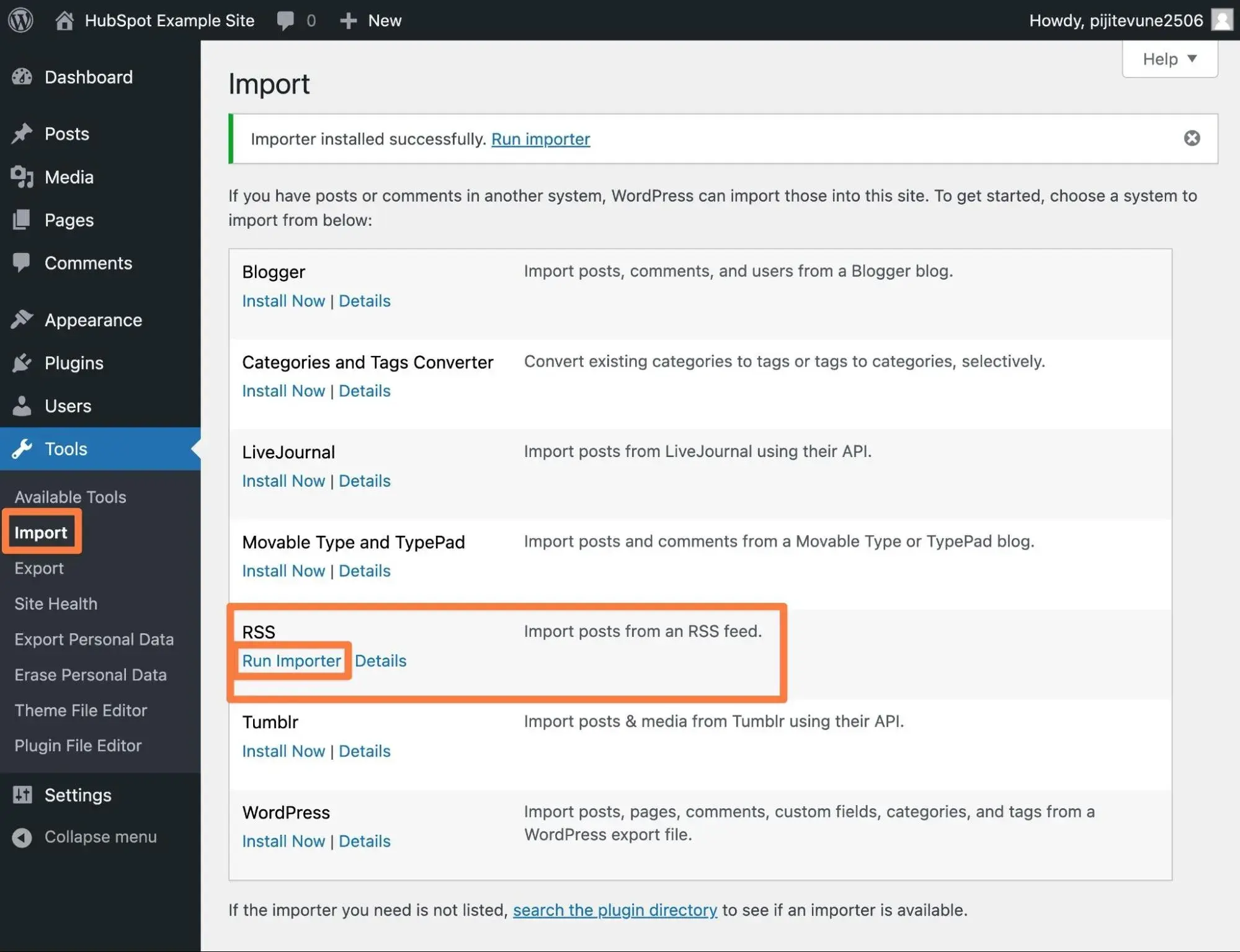
yourwixsite.com/blog/feed.xmlor similar. Check this URL in your browser; you should see XML code. Copy the URL. - Use WordPress Importer: In your WordPress dashboard, go to
Tools > Import. - Install & Run RSS Importer: Find “RSS” in the list. If it’s not installed, click “Install Now,” then “Run Importer”.
- Import Feed: Paste your Wix RSS feed URL and click “Import Posts.”
RSS Import Notes:
- Text & Titles: This method mainly imports post text and titles.
- Images Not Included: Images within Wix blog posts will likely not transfer. You must download these from Wix, upload them to your WordPress Media Library, and re-insert them into the posts.
- Formatting: Some formatting may need adjustment in the WordPress editor.
- Categories/Tags: Recreate your category structure in WordPress (
Posts > Categories) and assign posts.
5.3. Manually Transferring Your Wix Pages (Homepage, About, Services)
For your main website pages on Wix, the process is manual:
- Create New Page in WordPress: In your WordPress dashboard, go to
Pages > Add New. - Open Wix Page: In another browser tab, open the Wix page you are transferring.
- Copy Text: Select and copy the text content from the Wix page.
- Paste into WordPress: Paste the text into the WordPress page editor.
- Bubblehub Tip: Use “Paste as plain text” (Ctrl+Shift+V or Cmd+Shift+V) to avoid messy Wix styling. You will style it using your WordPress theme.
- Recreate Structure: Add a Page Title. Use WordPress heading blocks (H1, H2, H3) to match your Wix page’s structure. This is good for readability and SEO.
- Save or Publish.
- Repeat for every static Wix page.
5.4. Handling Your Images and Media Files Correctly
Images from your Wix site generally need to be moved manually:
- Download Media from Wix: Ensure you have downloaded all images, videos, etc. from your Wix site (from your backup in Phase 1).
- Upload to WordPress Media Library: In WordPress, go to
Media > Add New. You can drag and drop files or use “Select Files” to upload them to WordPress. - Insert into Pages/Posts: Edit your WordPress pages/posts. Use the WordPress editor to insert your uploaded images.
- Add alt text: describe every image. Screen readers read it out and Google Images uses it.
Moving content from Wix to WordPress by hand is slow, and it is the one chance you get to fix the text on the way across. (We do content migrations if you would rather not. Contact us.)
Moving your Wix content
- Understand Wix does not offer full site export; most content migration is manual.
- Use your Wix blog’s RSS feed to import post text (images and formatting will need manual work).
- Manually copy/paste text from static Wix pages into new WordPress pages.
- Download all images and media from Wix; re-upload them to the WordPress Media Library.
- Always add descriptive alt text to images in WordPress for SEO.
6. Phase 5, design and user experience on the new site
The next question is whether you can keep the Wix design. See how we approach graphic design at Bubblehub.
6.1. Recreating Your Wix Design in WordPress: Possibilities and Opportunities
Not directly. Wix and WordPress use entirely different design systems. You can’t “export” a Wix design and “import” it into WordPress.
However, you can aim to:
- Recreate the look and feel.
- Match your branding (colours, fonts, logo placement).
- Often improve upon the design with WordPress’s greater flexibility.
Most people use the rebuild to fix the things that never worked on the Wix version. If you want someone else to do it, here is how to choose a website designer.
6.2. Selecting the Right WordPress Theme for Your Brand
A WordPress theme controls the overall appearance and layout of your WordPress site.
- Thousands Available: Free themes in the WordPress theme directory (
Appearance > Themes > Add New), plus premium themes from marketplaces like ThemeForest or directly from developers. - What to Look For:
- Aligns with Your Brand/Industry: Does it suit your business?
- Responsive design: it has to hold up on a phone and a tablet, not only a desktop.
- Customisation Options: How easily can you change colours, fonts, layouts?
- Good reviews and regular updates: an abandoned theme turns into a security problem.
- Lightweight & Fast-Loading: Avoid bloated themes that slow down your site.
- Plugin compatibility: it works with the plugins you need, WooCommerce included if you sell online.
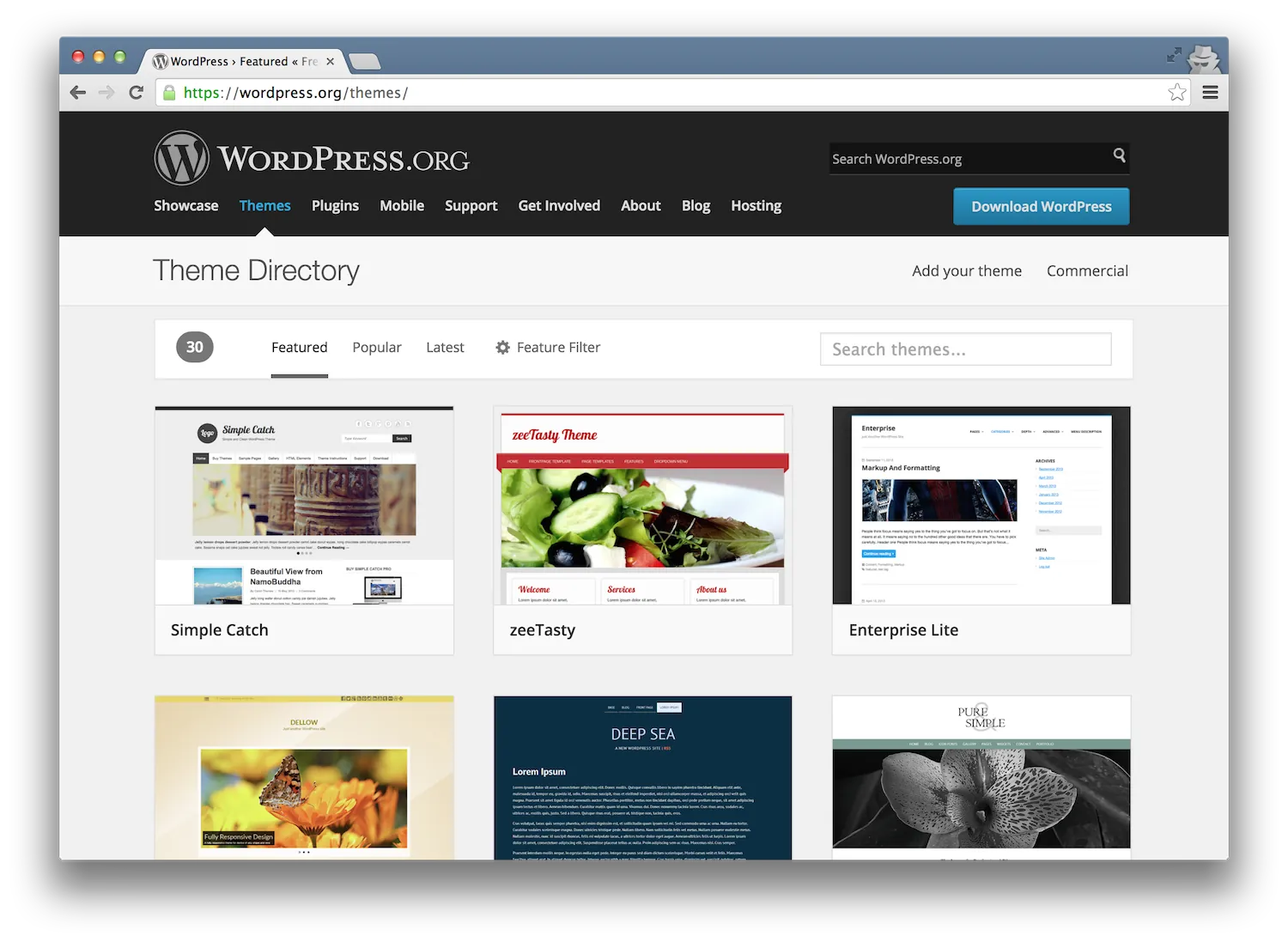
If the design has to be your own rather than a theme other sites are already using, that means a premium theme or a custom build. Our web design Dublin page has examples.
6.3. Customising Your Theme: Using the WordPress Customizer and Page Builders
Once you install and activate a theme (Appearance > Themes):
- WordPress Customizer: Most themes use the built-in Customizer (
Appearance > Customize) for real-time changes to colours, fonts, headers, footers, etc. - Page Builders: For those who liked Wix’s drag-and-drop interface, WordPress page builder plugins like Elementor or Beaver Builder can provide a similar visual editing experience. Many themes are built to integrate smoothly with these.
A Note on Page Builders: While they offer great design freedom, it’s important to choose a well-coded page builder and theme combination.
Design and user experience
- You cannot directly transfer your Wix design; aim to recreate and improve its look and feel.
- Choose a WordPress theme that is responsive, customisable, fast, and well-supported.
- Utilise the WordPress Customizer for theme settings and consider page builders for visual layout control.
7. Phase 6, the WordPress plugins to install first
WordPress plugins add functionality to your site. After a Wix to WordPress migration there is a short list worth installing on day one.
- SEO Plugin: Yoast SEO or Rank Math.
- Security Plugin: Wordfence Security or Sucuri Security.
- Caching Plugin (for Speed): WP Rocket (premium) or LiteSpeed Cache.
- Backup Plugin: UpdraftPlus.
- Contact Form Plugin: WPForms or Contact Form 7.
- Analytics: MonsterInsights or Site Kit by Google (to easily integrate Google Analytics).
- Image Optimisation Plugin: Smush or ShortPixel.
- If you sell online: WooCommerce. There is more in our article on why SEO is important for eCommerce.
To install a plugin: Go to Plugins > Add New in your WordPress dashboard, search, “Install Now,” then “Activate.”
The plugins to install first
- Install an SEO plugin (Yoast SEO or Rank Math) for on-page optimisation.
- Add a security plugin (Wordfence) to protect your site.
- Use a caching plugin (WP Rocket) to improve loading speed.
- Set up a backup plugin (UpdraftPlus) for regular site backups.
- Include plugins for contact forms, analytics, and image optimisation.
8. Phase 7, 301 redirects from Wix to WordPress
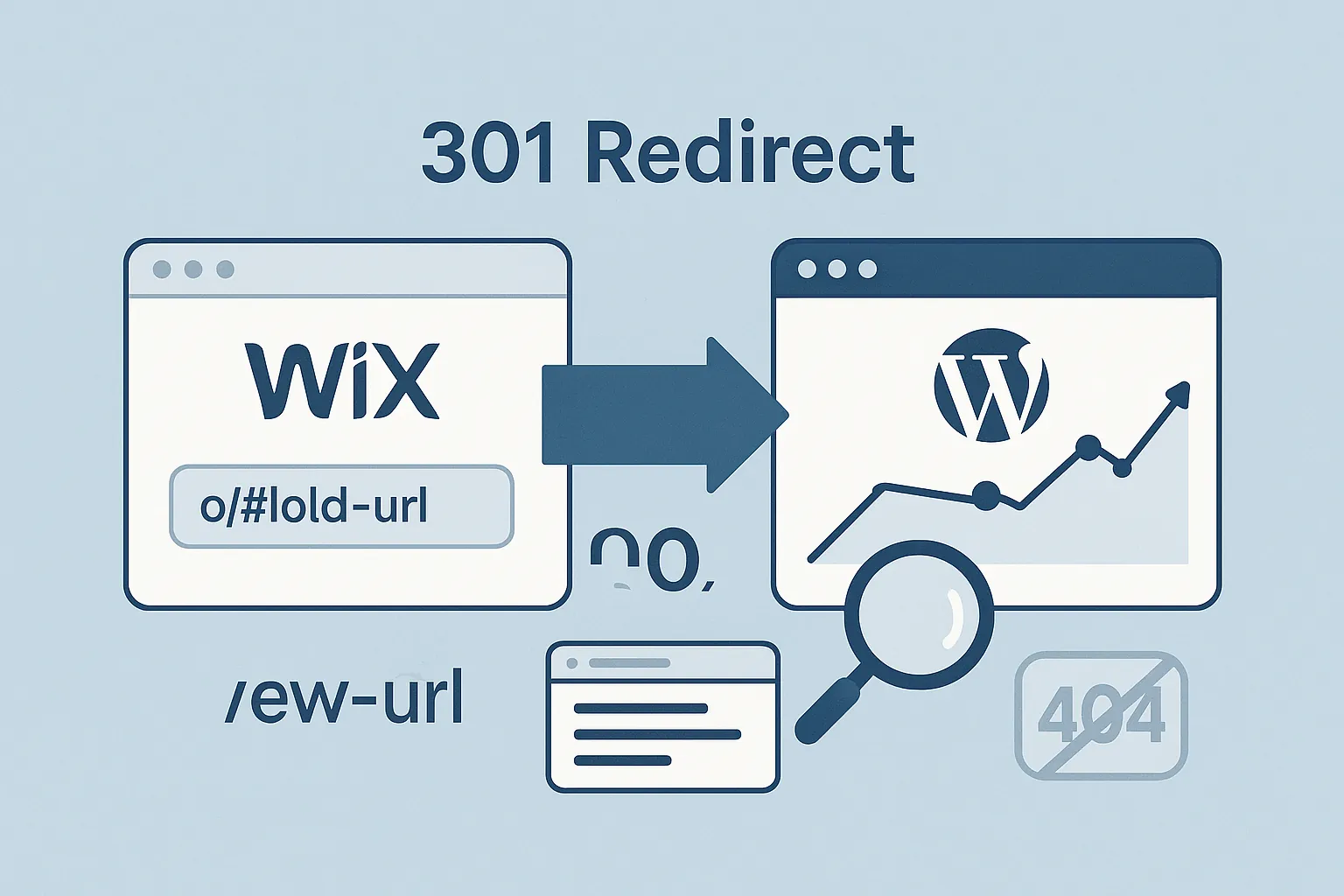
This is the step that decides whether the move costs you rankings. When you go from your old Wix URL structure to new WordPress URLs you need 301 redirects. A 301 tells search engines the page has moved for good.
What 301 redirects do when you migrate from Wix to WordPress
- Preserve SEO Rankings: Passes “link equity” from old URLs to new ones. Without them, you lose SEO value. For more on preserving rankings, you might find resources like Google’s guide on redirects helpful.
- User Experience: Prevents visitors from hitting “404 Not Found” errors.
- Avoid Duplicate Content.
Important Note: Effective redirects generally require a custom domain name with your Wix site. If you used a free Wix URL, direct redirection is usually not possible.
How to Set Up 301 Redirects (Recommended Way):
- Use a WordPress Redirection Plugin: We recommend “Redirection” (free and popular).
- Install and activate the plugin.
- Add Redirects: In the plugin, specify “Source URL” (old Wix path) and “Target URL” (new WordPress URL).
- Example: Old:
/#!about-us/c1ger-> New:https://yourdomain.com/about-us/
Test every redirect before you cancel your Wix plan. Put the old URLs into a browser and check where each one lands.
Setting up the redirects
- Set up 301 redirects for all significant old Wix URLs to their new WordPress equivalents.
- This preserves SEO value and ensures a good user experience.
- A custom domain on Wix is generally necessary for effective redirects.
- Use a WordPress plugin like “Redirection” for easy and safe implementation.
- Thoroughly test all your redirects.
9. Phase 8, the checks after launch
Your new WordPress website is live, and a few checks are left before you leave it alone. Our guide to investing in digital marketing covers what comes after that.
- Thorough Testing: Check links, forms, device compatibility, image loading, and proofread.
- SEO Setup: Configure SEO plugin, submit XML sitemap to Google Search Console. Verify your site.
- WordPress Settings Check: Permalinks (set to “Post name”), Reading Settings (ensure search engines can index). Delete default content.
- Performance Optimisation: Test site speed with tools like Google PageSpeed Insights.
- Monitor & Iterate: Track analytics (Google Analytics), check Google Search Console for issues.
WordPress Migration Post-Launch Checklist
Functionality and testing. Verify all internal links are working: test menus, buttons and every internal link to be sure they point at the right pages. Test all forms and contact methods: submit a test form and check the submission arrives. Check mobile responsiveness: load the site on several devices. Cross-browser testing: check the site in Chrome, Firefox, Safari and Edge. Run page speed tests: use Google PageSpeed Insights to find and fix what is slow.
SEO configuration. Verify the 301 redirects are working: test the old Wix URLs and see where they land. Optimise title tags and meta descriptions: every page that matters needs its own. Generate and submit an XML sitemap: create it with your SEO plugin and submit it in Google Search Console. Set up Google Search Console: verify ownership and check for crawl errors or indexing problems.
Security and performance. Verify the SSL certificate is working: the site should load over HTTPS on every page. Configure your caching plugin. Set up automated backups that save the WordPress database and files on a schedule. Install a security plugin such as Wordfence or Sucuri. Then the last few. Set up analytics tracking, whether that is Google Analytics or something else. Add a favicon so your icon shows in browser tabs and bookmarks. Configure Open Graph and Twitter Card metadata for social sharing. Deactivate and delete any plugin you are not using.
10. Phase 9, doing it yourself or hiring an agency
Should you migrate your Wix site to WordPress yourself, or hire an agency like Bubblehub Media?
Consider DIY If: Your Wix site is simple, you’re tech-savvy, have ample time, and a very limited budget.
Consider Bubblehub Media If:
- Your Wix site is complex (large e-commerce, many Wix Apps).
- Your rankings matter and have to survive the move. See our SEO Kildare page.
- You want a professional, custom design for your new WordPress site.
- Your time is valuable and better spent on your business.
At Bubblehub Media, Wix to WordPress migrations are a core service. We handle planning, content migration, custom web design, SEO, setup, and support.
If this is more than you want to take on, send us the address of your Wix site and we will tell you what moving it involves.
11. Common questions about moving from Wix to WordPress
How long does Wix to WordPress migration typically take?
This varies greatly depending on the size and complexity of your Wix site, the amount of content, whether you’re doing a custom design, and whether you DIY or hire professionals.
A simple site might take a dedicated DIYer a week or two. More complex sites handled by an agency could range from 2-3 weeks to several months for very large projects with custom development.
Will migrating from Wix to WordPress harm my current SEO rankings?
If done incorrectly (especially if 301 redirects are missed or poorly implemented), yes, it can temporarily or even permanently harm your SEO.
Handled properly, with every old URL mapped to its new one before the switch, rankings usually hold. The gain comes later, from the control WordPress gives you over titles, speed and structure.
Is WordPress harder to use than Wix?
WordPress does have a learning curve but offers more power. Wix is simpler but limited. Most users adapt quickly with many available tutorials.
How much does it cost to migrate from Wix to WordPress?
Costs run from almost nothing if you do it yourself to several thousand for an agency build with a custom design. Our article on how much a website costs has the ranges.
Can I keep my existing domain name when I move from Wix to WordPress?
Yes. You can transfer the registration away from Wix to your new host or another registrar, or keep it registered with Wix and point its DNS settings at your new WordPress site.
Do I need to know how to code to use WordPress?
No, you don’t need to know coding to use WordPress effectively for managing content, using themes, and installing plugins.
For deeper customisation or development, coding knowledge (HTML, CSS, PHP, JavaScript) is beneficial, or you can hire a developer.
What happens to my Wix subscription after I migrate?
Once your new WordPress site is fully live, tested, and you’re happy with it, you can cancel your Wix premium subscription.
Ensure your domain is either transferred away from Wix or is pointed correctly and stable before cancelling, especially if Wix is your domain registrar.