

A Google review link opens the review form for your business. The customer taps the link, signs in to Google if asked, and writes the review. The customer does not need to search for your business first.
You can get the link in two ways. You can copy it from your Business Profile. Or you can build it from your Place ID.
Google also lets you make a QR code to request reviews. You make the code on a computer, not on a phone.
How do you get your Google review link?
Use this method if you manage the Business Profile. Sign in to the Google account that manages the profile.
- Go to your Business Profile.
- Select Read reviews.
- Select Get more reviews, then the Share icon if you see one.
- Select Copy to copy the review link.
Google’s help page for this is “Create a Google link or QR code to request reviews”. Google can change the names of these buttons. If you cannot find one, search the help page for the current names.
Paste the link into a message and open it yourself before you share it. You should see the review form for your business.
That test alone is not enough. You manage the profile, so your phone is probably signed in as you. A customer’s phone may not be signed in at all.
Test the link the way a customer will meet it. Open it in a private window. Google should ask you to sign in. Sign in with a personal account that does not manage the profile. You should reach the review form for your business. If you reach your listing or another page instead, copy the link again from Get more reviews and repeat the test.
Repeat the test on a phone that is not signed in as you. If you can, use an iPhone and an Android phone.
Older guides may tell you to use a short name link, such as g.page/YourBusinessName. Google stopped showing short names on Business Profiles in 2026. It also stopped owners from creating or editing them. Short names that already exist still work. Even so, do not print a new batch of cards from a link like that. Copy the current review link from Get more reviews.
How do you make a Google review QR code?
A QR code is a square code that a phone camera reads. It is a second way to ask for a review. Put it on a counter card, a receipt, a van or a flyer.
Google makes the code in the same place as the link. Google says: “Currently, reviews QR codes can only be generated on a computer browser, not on mobile devices.”
- Open Get more reviews on a computer.
- Right-click the QR code.
- Select Save image as.
- Save the file where you can find it.
Print the code large enough to scan from a short distance. Scan it with a phone before you print many copies. Test it on an iPhone and on an Android phone.
Use the code that Google gives you. Some free code makers send every scan through their own web address first. If you print such a code and the maker closes, the code stops working. When you scan, check the web address your phone offers to open. It should be your review link, not the maker’s address.
If each branch has its own Business Profile, each one has its own link. Print one code for each branch.
How do you find your Google review link without a Business Profile?
You need the Place ID of the business. Most places on Google Maps have one. Google defines it this way: “Place IDs uniquely identify a place in the Google Places database and on Google Maps.”
This method suits an agency that works for a client. It also suits a business that has a Maps listing but no access to it.
- Open the Place ID Finder from Google Maps Platform.
- Type the name of the business in the search box.
- Select the business from the list.
- Copy the Place ID from the box on the map.
- Add the Place ID to the end of the link below.
The link has this form:
https://search.google.com/local/writereview?placeid=YOUR_PLACE_ID
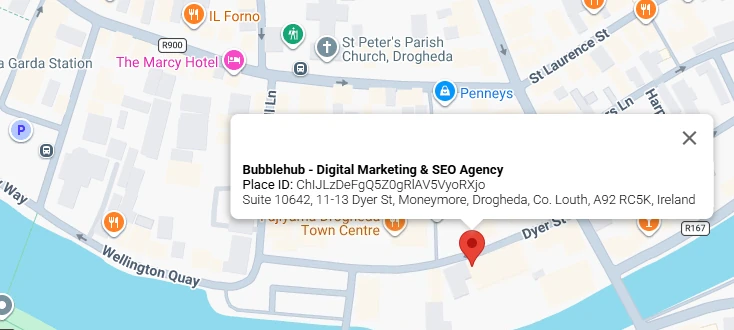
The Bubblehub listing has the Place ID ChIJLzDeFgQ5Z0gRlAV5VyoRXjo. Its review link is:
https://search.google.com/local/writereview?placeid=ChIJLzDeFgQ5Z0gRlAV5VyoRXjo
Google does not document this link form on its Place ID page. It opened the review form for the right business when tested on 9 November 2026. Test your own link in a private window before you use it. The link can return an error page. If you get one, use the link from your Business Profile instead.
Google says a Place ID can change. It recommends that you refresh a Place ID that is more than 12 months old. Check the link again once a year.

What does the customer see?
The customer sees the name of your business, five stars and a box for the text. The customer can add photos and videos.
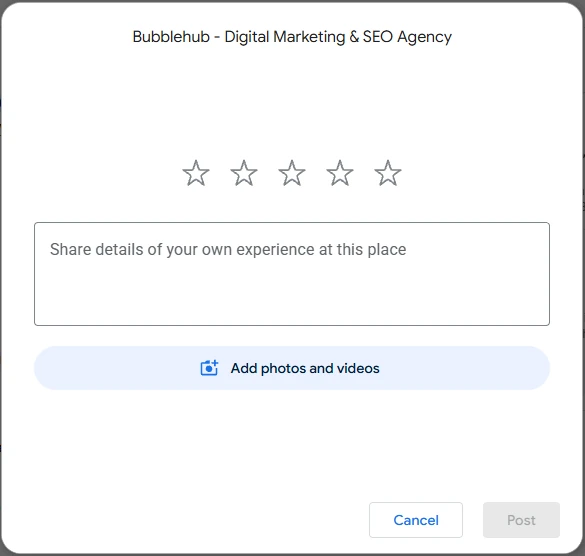
The customer must sign in to a Google account to post. Google shows the review under the name on that account. Tell customers this before you ask. Some people do not want to sign in.
Owners often find that the sign-in step is where a request stalls. A customer who is not signed in to Google on that phone may land on a sign-in page or on your listing. Some will stop there.
A Google account can use any email address. It does not have to be Gmail. If a customer has no account, tell them they can make one with the email address they already use. Do not push them.
Some customers will still say no. Let them go with a smile. You can ask for a short note by email or on a form on your website instead. That note will not show as a Google review. It is still useful feedback.
Where should you put the link?
Ask soon after the job is done. Put the link where the customer already looks.
- A text message to a customer who has said a text is fine.
- An email that thanks the customer.
- Your email signature.
- The QR code on a counter card, an invoice or a van.
- The thank-you page on your website.
Write one short line with the link. Say what you want in plain words, for example “Could you tell us how the job went?” Do not tell the customer what to write.
Ask face to face first. If the customer is happy to get a text, send the link the same day, while the job is fresh. Send the link itself and not a picture of a QR code. A customer cannot easily scan a code on their own screen, and a link takes one tap. Keep the QR code for printed places.
Our guide to getting more Google reviews has more ways to ask. Our guide to replying to Google reviews shows what to write back. If you want help with the whole profile, see our Google Business Profile service.
What does Google not allow when you ask for reviews?
Google’s policy for reviews is strict. The policy page is “Prohibited and restricted content”. It says Google does not allow a business to:
- Offer incentives for reviews, such as payment, discounts, free goods or services.
- “Discourage or prohibit negative reviews, or selectively solicit positive reviews from customers.”
The first rule means no prize draws, no discount codes and no free gifts for a review. The second rule bans review gating. Do not send the review link only to customers you think are happy.
The same policy lets you ask. It allows you to “solicit or encourage the posting of content that does represent a genuine experience”. You must offer no incentive and not try to influence the review. Send the link to every customer. Let each one write what they think.
A star survey can break the second rule without you meaning to. Suppose it asks for a rating first and then sends only the 4 and 5 star answers to Google. That is review gating. A review tool or an automation can be set up this way. Check that yours sends every customer to Google, whatever the rating.
Two more rules matter in a shop. Google’s policy says you should not ask staff to collect a set number of reviews. It also says you should not require or pressure a customer to leave a review while they are on your premises. Ask once, be polite and let them choose.
Pace matters too. The policy bans unusual volumes or patterns of reviews that look like an effort to manipulate a rating. Send the link as each job finishes and not to your whole customer list on one day. A steady pace is the safer way to ask.
The policy also covers a conflict of interest. It gives current or former employment as an example. Do not review your own business. Do not ask staff to post reviews for you.

Do more reviews help you rank?
Google says they can. In its tips to improve local ranking, Google writes: “More reviews and positive ratings can help your business’s local ranking.” Google adds that the number of reviews is one input to prominence.
Google also says: “There’s no way to request or pay for a better local ranking on Google.” Reviews help, but you cannot buy a position. Read our local SEO guide for Ireland for the other things that matter.
How long does a review take to appear?
Google checks a review before it shows. Google says: “In some cases, this process might take a few days, which can delay a review’s appearance on your profile.” Do not ask the customer to post the review again.
Reviews can also go missing after they have shown. Ask the customer if they can still see their review on their own account. Keep your own record of each review, with a screenshot. Google does not restore a review that it removes for breaking its policy.
If a review breaks Google’s rules, you can report it. Our guide to removing Google reviews shows the steps. A review that disappears is a different problem. Read why Google reviews disappear.
Questions people ask about the Google review link
How do you set up a Google review link?
Open your Business Profile and select Read reviews. Select Get more reviews and copy the link. You can also build the link from your Place ID.
How do you make a Google review link generator?
You do not need one. Add the Place ID of your business to the end of the link form above. Find the Place ID with the Place ID Finder.
How do you get a Google review link without a Business Profile?
Find the Place ID of the business with Google’s Place ID Finder. Add it to the review link form. Open the link to check it before you share it.
How do you text a Google review link?
Copy the link and paste it into a text message. Add one line that asks for honest feedback. Send it after the job is done, and only to a customer who has said a text is fine.
Is review gating allowed?
No, not by Google. Its policy does not allow a business to “selectively solicit positive reviews from customers”. Send the link to all customers.
Can you offer a discount for a Google review?
No. Google’s policy bans incentives such as payment, discounts and free goods or services for a review.
Can you make a QR code on your phone?
Not from the Business Profile. Google says QR codes can only be generated in a computer browser.
Why does my Google review link not open the review form?
Owners often find that the customer is not signed in to Google on that phone or browser. Google requires a signed-in account to post, so the link cannot skip that step. A link that points to your listing and not to the form gives the same result. The Place ID link can also return an error page. Copy the link again from Read reviews and Get more reviews, then test it in a private window.
Can a customer leave a Google review without a Google account?
No. Google says customers must be signed in to a Google Account to leave a review. The account can use any email address, not only Gmail. If a customer will not sign in, ask for a short note by email or on your website instead.